 OiYOi
OiYOiStudent guide
Your first week, in order
Every step needs something from the step before. Get the order wrong and you're not just slower, you're stuck: no UK number, no GP registration; no proof of enrolment, no bank account; no bank account, nothing to add to your phone wallet.
- How long
- Seven steps across a week; the real waiting is for uni registration and the bank account
- What you need
- You're in the UK; your passport; your visa or eVisa account; a card you can pay with
- What you get
- Seven jobs done in order and you're properly set up: data, proof of who you are, a bank account and a GP
Why the order matters so much
Get the first two steps done and the rest falls into place.
Seven steps (the main route)
Step 1: Airport to your accommodation
See "Landing day: from the plane to your front door". Do one thing only: get yourself and your cases through your front door. No admin today.
Done when: you've got the keys and you're inside.
Step 2: Data on your phone, and verification codes coming through
See "Get online the moment you land: sorting your SIM". Everything after this depends on it: uni registration, your bank and your GP will all send verification codes and want a UK mobile number.
Done when: you're online and you can receive verification codes (if you've got data but the codes aren't arriving, fix that first).
Watch out: if you didn't set up an eSIM or roaming before you left, get on the Wi-Fi at your accommodation and sort a SIM from there. A physical SIM has to be posted, and these few days are exactly when you need data most.
Step 3: Register at uni and get your proof of enrolment
See "What your student status letter unlocks". Only once you've registered can you download that PDF from the student portal, and you need it for a bank account and your council tax exemption.
Done when: the enrolment letter PDF is saved in your cloud storage, ready to print any time.
Watch out: registration needs your passport plus proof of your visa (an eVisa share code or your old BRP). Don't go to the bank until you've registered; you'll only be wasting a trip.
Step 4: Check your eVisa and practise making a share code
See "Your visa now lives in your eVisa". Your visa lives online, so log into your UKVI account and check your status is right, then have a go at generating a share code. Landlords, employers and some banks will ask for one.
Done when: you've logged into your UKVI account and generated a share code once.
Watch out: your account is linked to your passport. If you get a new passport, update the account first, or the code won't generate.
Step 5: Open a bank account (needs steps 3 and 4)
See "Start with a digital bank". You'll need proof of enrolment, proof of your visa and a UK address. No tenancy agreement? A letter from your uni counts as proof of address, which is exactly why step 3 comes first.
Done when: you've got your account number and your card.
Watch out: physical cards are posted, so a wrong address means a lost card. Check your door number and postcode before you submit.
Step 6: Register with a GP (needs step 2)
See "Register with a GP". Don't wait until you're ill: register on the day you get sick and you'll just have to tough it out while it goes through. You'll need a UK mobile number and address to register.
Done when: the surgery confirms you're registered.
Step 7: Add your UK card to your phone (needs step 5)
See "Land, then put your card on your phone". Put your UK card in your phone wallet and you stop paying overseas card exchange rates and fees on travel and shopping.
Done when: you've tapped through a ticket barrier with your phone.
Side quests: not for everyone
- Renting privately: council tax exemption (needs the letter from step 3), deposit protection, a move-in video, meter readings; each has its own guide;
- Planning to work: check which category your visa falls under first (needs step 4), then apply for your NI number (needs step 5);
- In London: an 18+ Student Oyster photocard and adding a Railcard to your Oyster (both need the card from step 5).
What "done" looks like this week
Data, proof of enrolment, a bank account and a GP. Once you've got all four, everything else can wait.
Landing day: from the plane to your front doorUsually 2-4 hours from landing to your front door (the passport queue alone can take over an hour)
For you if it's your first time, you're on your own and speaking English feels daunting
Every step spells out what you'll see, where to go, what to have ready and what you'll be asked. Copy the English phrases straight off the page, or just show people your phone screen.
Step 0: Don't rush off the plane
Wait until the plane has stopped and the seatbelt sign is off before you stand up. Look up before you open the overhead locker - things shift during the flight, and bags falling out when it opens is really common.
Before you get off, do two things (you can do both from your seat):
- Keep your boarding pass safe, and take a photo of it so it's saved to your camera roll or the cloud. Your uni's enrolment sometimes asks you to prove which day you arrived in the UK, and your boarding pass is that proof. Don't bin it until you've enrolled.
- Have your accommodation address up on your phone screen. You'll need it for forms, taxis and telling the driver where you're going.
Step 1: Follow "Arrivals" – no need to ask anyone
Once you're off the plane, there's only one word to follow:
Arrivals – sometimes it says Baggage Reclaim or UK Border
The signs are yellow with black writing and they're everywhere. Follow the crowd and you can't really go wrong. It's quite a long walk, with lifts and escalators along the way.
No signal? No problem – you don't need data for this bit.
Step 2: Passport control (the bit that matters most)
Check the screenshot: only some passports can use the eGates (the self-service gates). If yours isn't on the list, don't follow everyone to the gates – queue for a desk with a Border Force officer.
You'll walk into a big hall with several queues. Look at the signs overhead:
Heads-up: not every passport can use the eGates. The passports gov.uk lists as eligible are from: Australia, Canada, Japan, New Zealand, Singapore, South Korea and the USA. So if yours isn't one of them, don't join the gates queue just because everyone else is breezing through. Your queue is the staffed desks. It's usually slower, and waiting over an hour is normal, so expect it and you won't panic.
Have three things in your hand while you queue (get them out early – don't rummage through your bag at the desk):
- Your passport (out of its cover);
- No visa to show – 2026 freshers are the eVisa generation: no sticker in your passport and no card (gov.uk: vignettes are no longer issued from 1 July 2026). Border Force scan your passport and check it themselves. You only need a share code if you're asked for extra proof, so generate one before you fly and screenshot it (you might have no signal there), but don't offer it unless they ask;
- Your offer letter / CAS / accommodation address – you might not be asked, but having them ready makes life much easier.
Also: take off your hat, face mask and sunglasses.
What the officer will ask
gov.uk says that if you're not from the EU, you'll usually be asked why you're coming to the UK. It tends to be the same few questions:
Tell the truth and take it slowly. If you don't understand, say:
"Sorry, could you say that again slowly?" "I don't speak much English."
There's nothing embarrassing about that, and nobody will give you a hard time for it. Even if you can't manage a word of English, that's fine - show them your offer letter and your address. Stay calm, don't recite a script, and never make anything up.
If you have an eVisa: your fingerprints may be taken to check against your eVisa. That's a normal part of the process.
Step 3: Pick up your luggage
Once you're through passport control, head for Baggage Reclaim. There are big screens in the hall:
Find your flight number (the one on your boarding pass). The number next to it = your carousel.
Go to that carousel and wait. Lots of cases look the same, so it's worth tying a bright strap round yours before you set off.
- Case hasn't turned up or is damaged: don't leave the baggage hall. Find Baggage Enquiries or your airline's desk first and report it there and then (going back once you're through customs is a real pain).
- Luggage trolleys are called trolleys. Some are free, some need a coin.
Step 4: Customs – just take the green channel
With your bags, carry on out and you'll see two channels: green, Nothing to declare, and red, Goods to declare (some airports also have a blue one for people arriving from the EU). Your own stuff as a student – clothes, laptop, books, everyday medicines – goes through green. Just keep walking. Now and then there are random checks, so being stopped for a quick look is perfectly normal.
Only two things will genuinely get you stopped. Remember these and you're fine:
- Meat and dairy (sausages, beef jerky, meat floss, milk tablets, instant noodle seasoning sachets with meat in them) – check the rules for where you're flying from. From China, for example, none of it is allowed and it's confiscated on the spot; see "What to pack: banned, pointless, worth it";
- Cash of £10,000 or more (a family travelling together counts as one total) – you have to declare it, and if you don't it can be seized; see "Carrying big cash? Have proof of where it's from".
There's also a rule that new goods worth more than £390 in total must be declared, and if you go over, tax is charged on the full amount – worth knowing it exists, but it rarely matters to students wheeling in their own old things. If you've brought a whole case of new stuff for friends and family, that's your call.
Step 5: In the arrivals hall, do one thing first
The doors open straight onto the arrivals hall (the bit with people holding name signs). Step to one side so you're not blocking the doors, then:
Switch your phone on, get online and let people at home know you've landed. No eSIM? There's free Wi-Fi in the hall (it usually asks for an email address).
Setting up an eSIM before you land is the easiest option – you're online the moment you step off the plane, so taxis, maps and verification codes all just work.
Step 6: Getting to your place – three options, depending on your luggage and where you're staying
Taking Heathrow as the example (other airports are further down), these are the airport's three official rail options:
How to choose:
- Lots of luggage, a long way to go and shattered: just get a taxi (see below) rather than battling the Tube - loads of stations have no lifts, and hauling two 30kg cases up and down stairs will genuinely make you cry;
- Not much luggage and staying centrally: Elizabeth line or Piccadilly line;
- Landing with friends: sharing a car often works out cheaper than everyone buying a ticket, and it takes you door to door.
Paying (where most people get stuck)
- Tube / Elizabeth line: no ticket needed – just tap your bank card or phone on the yellow reader at the gates (tap in when you go in, tap out when you come out).
- But your card might not work. TfL warns that paying with a phone linked to a non-UK bank card might not work, or you might be charged foreign transaction fees; physical contactless cards from abroad usually work, but may also come with those fees. So make sure you've got a card that works in the UK before you land (see "Sort out a card that works before you land").
- Heathrow Express needs a separate ticket and costs a lot more, so book in advance on its website to get it cheaper.
- Taxis: a ride-hailing app is the least hassle (you'll need data and a card); the airport also has a proper queue for taxis (the taxi rank – just follow the signs). Never go with someone who comes up to you in the hall asking if you need a car - licensed drivers don't tout for passengers inside the terminal.
When you reach your front door
- UK addresses go from small to big (house number, street, city, postcode). The postcode is the most precise thing to give a driver;
- Arriving in the middle of the night and not being able to get your keys is a classic trap – before you set off, check with your landlord or halls what time you need to collect keys by and what happens if you're late. Don't leave it until you've landed.
If you land at Gatwick
This guide covers Heathrow and Gatwick in full; other airports will follow later.
Find the station first
The railway station is in the South Terminal, about 5 minutes' walk from the arrivals and departures halls. Landed at the North Terminal? Take the free shuttle across – it's 2 minutes. (Check which terminal you're in first – the signs say North or South.)
Four train companies – pick by where you're staying
How to pick your station: work out which big station is nearest where you're staying – Victoria or St Pancras / Farringdon - then work back to the train. Don't assume the fastest one is best: you'll still be dragging your cases onto the Tube when you get off, so getting to a station near home often matters more than arriving 10 minutes earlier.
Tickets and paying
- Into London: you can just tap in with a contactless card or Oyster, tapping in and out, no ticket needed;
- But only towards London. The airport website is clear: for anywhere south of Gatwick or outside London (Crawley, Horsham, Brighton, Reading, Cambridge and so on), contactless doesn't work and you must buy a ticket;
- To buy a ticket: there are plenty of ticket machines in the South Terminal station, or you can buy online in advance and scan it at the gates;
- Want an Oyster card? The Your Service Centre desk in the South Terminal check-in area sells them;
- Travelling in a group of three or more? Groupsave gets you 33% off – worth asking if you've landed with friends;
- Booking ahead is usually cheaper (Gatwick Express is 10% cheaper booked in advance on its website).
Contactless has the same "foreign card" catch here: see the payment section above - a phone linked to a non-UK card might not work, so make sure you've got a card that does before you land.
Other airports
Stansted, Luton and London City aren't covered here yet; we'll add them later.
Three things to get done on landing day
- Let people at home know you've arrived, and save that photo of your boarding pass;
- Make sure you've got your keys and can get in;
- Make sure your card works and your phone has data – if either of those isn't sorted, everything you try to do tomorrow will stall.
Everything else (enrolling at uni, opening a bank account, registering with a GP, council tax) can wait until tomorrow – for the order, see "Your first week: do it in this order". For today, get some sleep.
Contains public sector information licensed under the Open Government Licence v3.0.
Get online the moment you land: sorting your SIMTen minutes to sort before you leave; a UK SIM takes a few days by post, an eSIM works the same day
Why this has to be sorted before you fly
No signal for your first few hours amplifies every other problem: you can't book a cab, open a map, get verification codes, reach your landlord, and your family can't reach you either.
And it takes ten minutes to sort before you leave. So there's just one rule here:
Don't count on "I'll figure out data when I get there".
About "I'll just buy a SIM at the airport"
Don't bank on it. You might land at dawn or late at night, the shop might be shut, there might be a queue, you might have to sort it out in English, or there might only be pricey tourist SIMs.
It's fine as a backup, but it isn't a plan.
Three options, safest first
Option 1 (safest): install an eSIM that works on arrival before you go
An eSIM is a SIM with no card: you scan a QR code or install a profile on your phone and it's live, no waiting for post. Install it before you leave, turn your phone on when you land and it connects – the least hassle of the lot.
You'll need: a phone that supports eSIM (most recent models do; check in your settings before you go), and one that isn't locked to a network.
Option 2 (fallback): turn on roaming with your home network
Before you leave, turn on international roaming in your network's app or with customer service, and it'll work when you land.
Every network's prices and rules differ and change often, so this guide gives no figures. Before you go, ask customer service or check the app, get answers to these three, and screenshot them:
1. Is international roaming switched on for my number? (if not, turn it on now – it usually works straight away) 2. How is data charged in the UK? Is there a daily cap, and how much is it? 3. What happens once I go over the cap? Do I need a separate data add-on?
Don't go by anyone else's figures (including the "I think it's capped at thirty a day" kind) - they differ by network and plan, and change every year. Ask about your own SIM and screenshot the answer.
Roaming is a stopgap, not a long-term fix: it gets expensive, and lots of things here want a UK number (registering with a GP, the bank, food delivery apps and parcel texts may all ask for one).
Option 3 (you didn't get round to anything): use free Wi-Fi when you land
Airport terminals have free Wi-Fi (you'll usually need to enter an email address or phone number). Use it to:
- Let your family know you've landed safely;
- Book a cab / look up your route (screenshot the route – you may lose signal once you leave the airport);
- Get on your landlord's or halls' Wi-Fi when you arrive, then sort a SIM without the rush.
It'll get you out of a hole, but it makes arrival day stressful – try not to end up here.
Once you're here: get a UK SIM
When to get it
In your first few days. Signing up at uni, opening a bank account and registering with a GP often ask for a UK mobile number.
Which kind
Don't sign a long contract straight away. Start on a rolling monthly plan for a month or two, see how much you actually use, then decide whether to commit – the reasons and plan types are in "Don't sign a long contract for your first SIM".
giffgaff as an example (an example we checked, not a recommendation)
- Physical SIMs are posted free, the card itself costs nothing, and you only pick a plan and pay when you activate it; it's a three-in-one card (standard/micro/nano), so pop out the size your phone takes;
- On rolling monthly, 20GB is £10 a month (checked 5 September 2026), with smaller plans below that;
- It does eSIM (the help centre has a page on it). But we haven't checked whether you can activate it while you're still abroad and use it the moment you land - if you're going this way, check on their website before you leave.
Compare similar plans from other networks yourself. We're not picking a network for you.
Three small things nobody warns you about
- Don't cancel your home SIM. Your apps, bank and payment services back home send verification codes to it. Before you leave, call your network and switch to the cheapest plan that keeps the number alive, then keep it in your second SIM slot or an old phone for texts only, no data.
- Settle on your long-term UK number before you register with uni, the bank or a GP. They all keep your number, and changing it means updating every one; if you do switch network, take your number with you (see "Switch network, keep your number"), don't get a new one.
- If your phone was bought abroad, check two things before you go: it isn't locked, and it supports UK 4G/5G bands (search your model plus "UK bands"). When people say a phone from abroad "gets bad signal", it's usually missing bands, not the network's fault.
Two tips from the airport (unchecked, from students who've done it)
The most obvious SIM counter in arrivals is usually the priciest; walk a bit further to the Tube level or a convenience shop and the same SIM is often much cheaper, and staff will help you activate it. That's experience, not a rule – prices and shops change, so don't make it your plan. Same message: sort your data before you fly.
Three ways to get the order wrong
- Waiting until you land to order a physical SIM – post takes a few days, exactly when you need data most;
- Getting the SIM, then finding your phone is locked – a phone bought on contract back home may only work on that network, so check it's unlocked before you go;
- The SIM's sorted, but your payment card doesn't work – signing up for a SIM and getting around both need a card that pays, see "Sort out a card that works before you land". TfL also warns: a non-UK card in a phone wallet might not work, or could be charged overseas transaction fees.
On arrival day, you're done when
Your phone has data + you can receive verification codes. Both, or it doesn't count - plenty of people get stuck with "data, but no codes from home", and banks and uni registration often need those codes.
What your student status letter unlocksA few minutes to download it yourself once enrolment is processed; at some unis it only appears the next working day
The short version
The status letter your uni issues (names vary: statement of student status / confirmation of study / statement of registration) is a student's skeleton key: download it yourself as soon as enrolment is complete, save it to cloud storage and print it whenever you need it. Banks, council tax exemption, proving to your landlord who you are – they all accept it.
What it's good for
- Opening a bank account: high-street banks often ask for a "university letter" as supporting evidence – this is it; some unis also have a dedicated bank letter in the same place;
- Council tax exemption: if you're renting, this is what gets you exempted (see the "Full-time students don't pay council tax" guide);
- Proving to your landlord / letting agent that you're a student; visas, scholarships and anything else that hinges on your student status will generally accept it too.
The surprise: you don't need it to register with a GP
Older guides often list "registering with a GP" as one of its uses. The NHS position is that you don't need ID, proof of address or proof of identity to register with a GP - so don't hold off seeing a doctor waiting for this letter; you can register as soon as you arrive. It's also a handy way to tell whether a guide is out of date.
How to get it, step by step
There are no website screenshots in this section, and that's deliberate. The letter lives in your uni's student system; universities aren't public bodies and aren't covered by the OGL, and we don't screenshot pages we haven't been licensed to use (the policy is in our 20260904 sprint notes).
The more practical reason: every uni has a different way in (UCL uses Portico, KCL uses Student Records, Imperial uses eDocuments in My Imperial), and even the letter's name is different. What follows is what all three unis' official pages have in common, plus how to find your own uni's page. If any step doesn't match what your uni's page says, go with your uni.
Step 0: find your own uni's page first
- Search for "your uni's name + student status letter" (or confirmation of study / statement of registration), and only trust
.ac.ukdomains; - That page will tell you three things: which menu in the student system it's under, how long after enrolment it appears, and whether you can download it yourself;
- Save that page and note the date you looked at it.
If you can't find it, ask your uni's student enquiries / student hub, or the Students' Union – they answer this question every day.
Step 1: get your address right first (the step people most often have to redo)
The letter prints the home address and term-time address from your student record exactly as they are, and your uni won't check them for you. All three unis' pages say this; UCL tells you outright to check your address is correct before you generate the letter.
So before you download it:
- Go into "personal details / contact details" in the student system and set your term-time address to where you live now – check the house number and postcode character by character;
- Make sure your name is spelt exactly as it is on your passport;
- Changes don't take effect straight away – at some unis it's the next working day (Imperial says "updated by four in the afternoon the next day"). Don't download it the moment you've made changes – you'll just get the old version.
Step 2: wait for enrolment to be processed
The letter only appears once enrolment is fully complete (for international students that includes having your visa checked on campus). Imperial says it's available to download "from four in the afternoon on the next working day after enrolment"; for other unis, check their own page. If it isn't there yet, don't panic, and don't go and queue at the desk – it's most likely still being processed. Give it a working day and look again.
Why enrolment gets "stuck": the five problems that keep coming up in students' help posts (patterns across posts from four unis)
Bottom line first: the bit you did online before you flew out is usually called pre-enrolment, and it isn't the same as being fully enrolled. If the system says "on hold / pending / temporary", it hasn't failed – it's waiting for you to provide one of the things below:
Two smaller points: if you don't have an agent, leave the "authorised representative" box blank; your IT account and uni email are usually sent out before you're fully enrolled, so if you can't find them, check your spam folder first.
Don't keep refreshing the system. Check your status, check your inbox and send whatever the email subject line asks for – unis review in batches, so even with everything in you may wait a few working days (go by what your uni's page says).
Step 3: find it in the student system and download the PDF
- Log in to the student system (with your uni email account);
- Look for a menu called something like "letters / documents / my documents / statement" – the name varies from uni to uni, and the page from step 0 will tell you;
- Choose the status letter (some unis also have separate versions, such as a bank letter or one for the council – pick the one for what you need it for);
- Download it or "print to PDF", and save it to cloud storage, not just on your phone.
Step 4: open the PDF and check three things
If anything's wrong: go back to step 1, fix your details, wait for the change to go through, then download it again. Don't take a wrong one along and hope for the best.
About "it needs a stamp and a signature"
These letters are mostly signed electronically now: UCL says plainly that they can't be signed by hand or stamped. When a bank or council asks for "the original", this PDF is the original; if they insist on paper, some unis will print it for you at the front desk (UCL says it can) – check the page from step 0.
Easy ways to get caught out
- Downloading straight after changing your address. Updates aren't instant, so you'll get the old address;
- Only saving it on your phone. Lose your phone and you lose the letter – save it to cloud storage;
- Following another uni's process. The way in, the name and the wait are all different, so go by your own uni's page;
- Putting off registering with a GP because of it. You don't need it for a GP.
Contains public sector information licensed under the Open Government Licence v3.0.
Your visa now lives in your eVisaAbout 10 minutes to set up a UKVI account; add your passport details before you travel
The short version
gov.uk describes an eVisa as "a digital record of your identity and immigration status", and it replaces physical immigration documents. The BRP card routine in older guides is history - everything now hangs off your UKVI account, which is free to set up and to check.
Three steps
- Before you land: make sure you can sign in to your UKVI account (with the email or mobile number from your visa application) and have a look at your eVisa status and conditions.
- Add your passport to the account: you're required to add your current passport details to your UKVI account before you travel, and to update them as soon as you get a new passport – otherwise the system can't match you up at the border.
- Generate a share code whenever you need to prove your status (renting, starting a job, opening a bank account) - see "Your share code opens every door".
Easy traps
- Still hunting for a BRP because an old guide told you to. Physical cards are no longer issued. Don't bin your old documents yet (a visa sticker still works while it's in date, and an old card can sometimes still be used to sign in), but for everyday proof of status, it's your eVisa.
- Not updating your account when you get a new passport. The most common trap – it'll trip you up at the border and whenever you need to prove your status.
- Paying someone to "do your eVisa". The official line is clear: creating a UKVI account and accessing your eVisa is free. Anyone charging you is a middleman.
Contains public sector information licensed under the Open Government Licence v3.0.
Start with a digital bankAbout 10 minutes to apply in the app; the physical card usually arrives within a few days, and you can use your phone wallet while you wait
The short version
What you're shortest of in your first fortnight is a UK bank account. The big high-street banks make you wait for an appointment; a digital bank takes ten minutes to apply for on your phone. Use it to get life up and running, and sort out the big-bank account in your own time – you can do both.
First, a myth to clear up
You'll often read online (including in an old version of this guide) that digital banks don't need proof of address. That's out of date. Monzo's official help page now says:
You may be asked to verify that you live at the address you gave us, to confirm you live in the UK.
The good news: one of the documents it accepts is "a valid UK tenancy agreement" - which most new students have. Once you've signed for a place, you've got one, so save a digital copy now. (Halls usually give you a tenancy or licence agreement too, which counts as the same kind of thing. But a uni "accommodation confirmation letter" isn't on its list, so don't count on it. Whether anything off the list will do is up to what they ask for at the time.)
It also accepts: a gas, electricity, water, landline or broadband bill from the last 3 months; an official letter from DWP, Jobcentre, NHS or HMRC from the last 3 months; this year's Council Tax bill; a UK bank, credit card, pension or investment statement from the last 3 months; or a UK driving licence. It doesn't accept: bill reminders, arrears or debt collection letters, or a P45 or P60.
What you need
- Age and status: 16 or over, and living in the UK long-term with the right to be here (a Student visa counts).
- Photo ID that's in date. It accepts a passport, a driving licence (a provisional one is fine) or a national identity card. A CitizenCard isn't accepted – it proves your age, it isn't an ID document.
- A phone that can install the official app and keep it updated (a digital bank lives entirely in its app, and old phones can't run it).
- A UK address where you can actually receive your card.
Seven steps (from the official help page, in our own words)
- Check your phone can run the app. If your software's too old, none of the rest will work.
- Get your ID out. A passport is the safest bet.
- Search for the bank by name in the official app store and download it. Stick to official channels – ignore any install file someone messages you, and any "we'll open an account for you" middleman.
- Fill in your basic details: address, email and mobile number, plus your job and how you plan to use the account (every regulated bank asks this – it's not them being awkward). This is where you might be asked for proof of address, as above.
- ID check: take a photo of your ID and record a selfie video. The system compares the video with your ID to make sure it's you and that you really are the one opening the account.
- Pick an account type (the free basic account is plenty for a student, so don't get talked into a paid tier).
- Wait for the card and activate it. It usually arrives within a few days. Follow the prompts in the app to activate it.
That's about ten minutes to apply. While you wait for the card, you can add it to your phone wallet and start using it.
How the high-street banks fit in
At the start of term the big banks (HSBC, Lloyds and the rest) are packed with freshers, so book online if you can rather than queuing - an appointment beats an early start. They usually want a proof-of-study letter, which you can download yourself from your uni's student system (see "What your student status letter unlocks"). Let the digital bank tide you over and add the big-bank account at your own pace. The two don't clash.
Before you go in, and once you're set up
- Not knowing what to say trips people up more than missing paperwork: read "Opening a bank account: what to say at the counter" before you go in and save it on your phone;
- The day your account opens, screenshot your sort code, account number, IBAN and SWIFT and send it to your family.
Common mistakes
- Waiting on a big-bank appointment before you've even landed. Branches are fully booked at the start of term, so let a digital bank cover you for now.
- Thinking you'll never need proof of address. As above, they might ask – save your tenancy agreement now so you're not scrambling.
- Putting down any old address. It has to be somewhere you'll actually get your card. If you haven't got a place yet, use your halls or another reliable delivery address.
- Using a CitizenCard as ID. It isn't accepted.
- Buying a "ready-made" account. "Verified accounts" sold online are money-laundering tools. For what happens if you get involved, see "Your account isn't a pass-through".
If it just won't go through
If you can't pull together the ID or proof of address, or you're stuck on the checks, the official help page points you somewhere: MoneyHelper (free, government-backed money guidance) or Citizens Advice. Both have free guidance specifically on opening an account without the usual documents.
Register with a GPAbout 15 minutes online, and it has to be done in one go (close it and you start again); surgeries usually complete your registration within 1 to 5 working days
The short version
Register in your first week – don't wait until you're ill. Leave it until the day you're poorly and you'll just have to tough it out while the registration goes through.
Registering is free, and it's the master switch for healthcare in the UK – without a GP you can't book appointments, get prescriptions or be referred to a specialist. Unlike in some countries, you can't just book yourself in at a hospital: you need a GP to refer you to a specialist.
The key point: nobody checks your documents
This is where lots of people get stuck, thinking they have to wait for their eVisa, a bank account or proof of address. You don't.
In the NHS's own words, you don't need ID, proof of address or proof of immigration status to register. Having an NHS number makes it easier for the surgery to find your records, but you can register without one. As long as you're in England, you can register, and it's free.
In other words: still sorting out where you'll live, documents still in progress, no bank account yet – you can still register. If the receptionist asks to see ID, you can tell them you know you don't need any to register. You can even register with no fixed address: use a temporary address, or the surgery's own.
Walk through it with screenshots
Every step below shows what that screen really looks like. Screenshots taken on 5 September 2026. Websites change – if the page doesn't match the picture, go by the website, and let us know.
Step 1 · First, the bit that matters: you don't need any documents
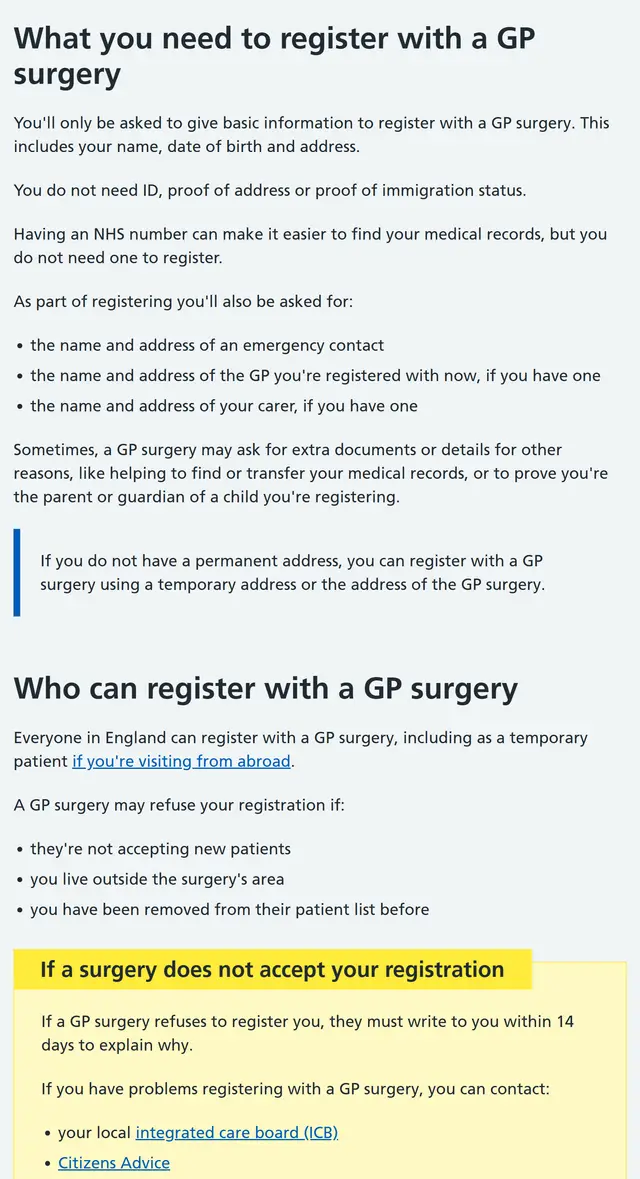
Open the NHS page and read this line first: "You do not need ID, proof of address or proof of immigration status."
Why start here rather than going straight to the form? What stops most people isn't the form – it's wondering "do I even qualify yet?" Read that line once and you won't second-guess yourself again.
Step 2 · Search by postcode
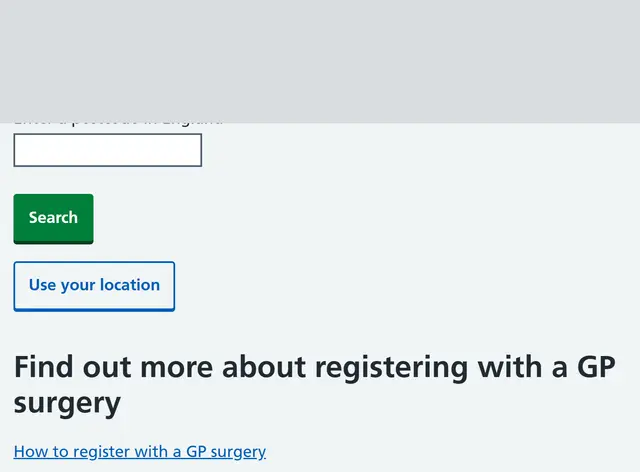
This screen has just one box, labelled "Enter a postcode in England".
- Enter a postcode, not a street address – the postcode of where you live, not your uni's.
- Postcodes look like
WC1E 6BT. The space in the middle is optional. - There's also "Use your location" if you can't be bothered typing – but you'll need to be near home.
Step 3 · Only two badges matter on the results page
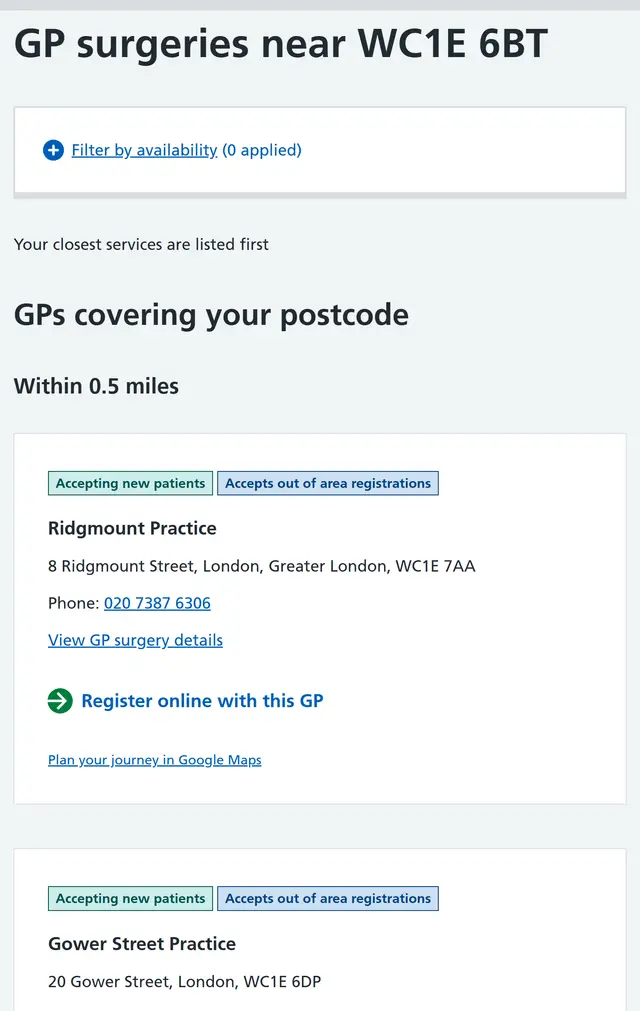
Results are listed nearest first. Each surgery has badges above its name, and you only need to know two:
This corrects an earlier version of this guide. It used to say "you might be turned away if you live outside the catchment area, so search near where you live". Going through it ourselves, we found the page turns this into a badge. You don't need to guess whether you're in the area – the badge tells you at a glance.
Once you've picked one, tap "Register online with this GP" under that surgery (the one with the green round arrow).
Step 4 · Read these three numbers before you start
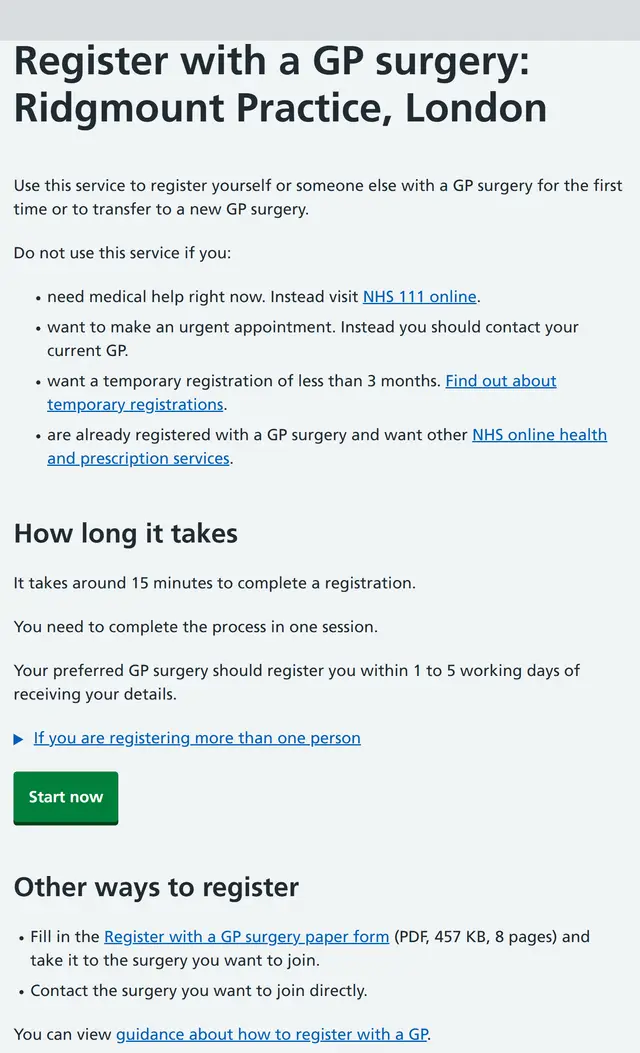
This takes you to a national registration service (not a form each surgery makes itself). There are three numbers on this screen – read them before you tap Start now:
- About 15 minutes per person.
- "You need to complete the process in one session." – you have to finish in one go. Close the tab, lose signal or wander off to find your passport number and you're back to the start. So have your passport next to you before you begin.
- The surgery will register you within 1 to 5 working days of receiving your details.
The screen also tells you when not to use this service: if you need medical help urgently (use NHS 111 online), need emergency care, or only want a temporary registration for less than 3 months (that's a different route).
Step 5 · Question one: who's registering?
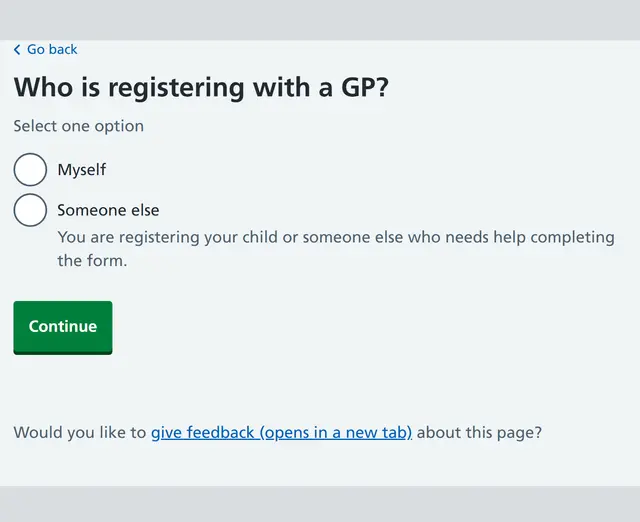
This is the first screen after Start now. Registering yourself? Choose Myself.
(Someone else is for registering a child, or someone who can't fill in the form. Choose it if you're filling it in for a friend, too.)
Step 6 · Question two: first time with a UK GP?
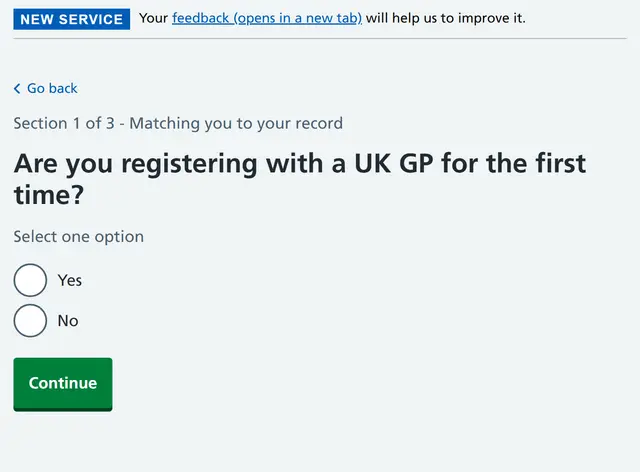
First, look at the small print at the top: "Section 1 of 3 – Matching you to your record". The form has three sections and you're on the first – worth knowing, so it doesn't feel endless halfway through.
"Are you registering with a UK GP for the first time?" If you've just arrived and have never seen a GP in the UK, choose Yes.
Step 7 · Question three: your legal name, as on your passport
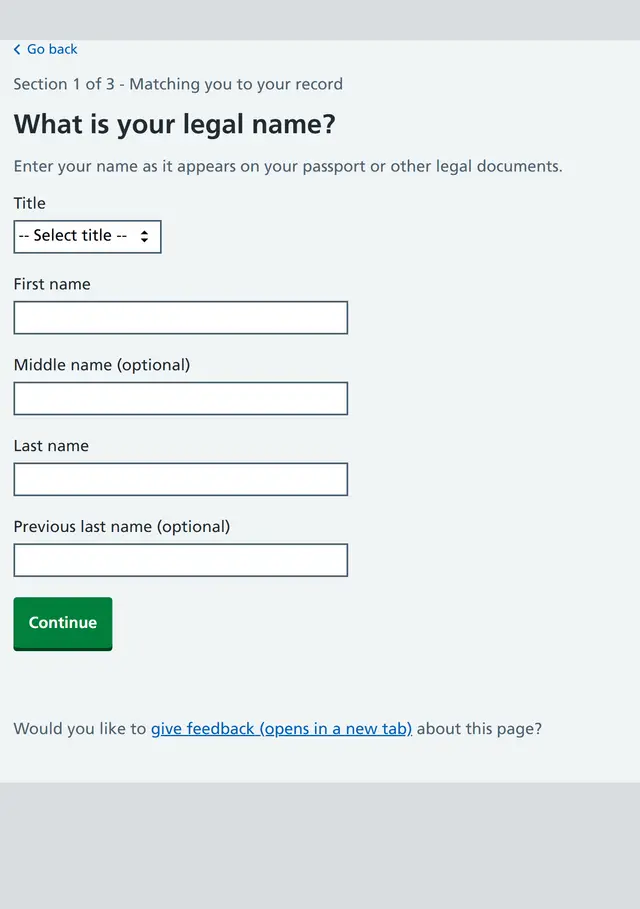
This is the screen people most often get wrong, and if you get it wrong, your records won't match up later. The page itself says: "Enter your name as it appears on your passport or other legal documents."
- First name = your given name, Last name = your surname (family name). Copy them exactly as your passport shows them, and if you'd normally put your family name first, don't do that here.
- Title is a dropdown (Mr / Mrs / Miss / Ms / Dr / Mx / Master / Other) – pick whichever fits.
- Middle name and Previous last name are both marked (optional) – leave them blank if you haven't got one. Don't make one up.
After that it's your date of birth, address, contact details and an emergency contact. Copy them from your passport and your tenancy agreement – no traps.
Once you've sent it
The surgery will usually let you know within 1 to 5 working days of getting your details that you're registered, though it can take longer. Don't expect to get an appointment until then.
A myth that gets passed round: "If you're not registered with a GP, A&E will cost you a fortune"
Wrong. A&E and Urgent Treatment Centres are free for everyone, whatever your immigration status; and because you paid the IHS (Immigration Health Surcharge) with your visa, hospital treatment beyond A&E is free too. So the reason to register isn't "so I don't get charged". It's so someone looks after the small stuff, your prescriptions are cheap, and someone can refer you when you need it - A&E is for emergencies. Turn up there with a cold and a temperature and you're the one queuing for six hours.
The five things people ask most once they've registered
This guide covers England. Scotland, Wales and Northern Ireland have their own GP systems (so if posts from Glasgow or Edinburgh don't match these steps, that's why) – go by the local NHS pages.
Easy traps
- Waiting until your paperwork is sorted before you register. The most common mistake, and the one that costs you most – as above, there's nothing to wait for.
- Closing the page halfway through. The form doesn't save a draft, so close it and you start again. Have your passport handy and don't use a connection that might drop.
- Not re-registering after you move. A new area may be outside your old surgery's catchment, so register again once you've moved. You don't need to tell your old surgery first – once you're registered, the system lets them know automatically.
- Booking a GP for every little thing. GP appointments are hard to come by. For headaches, colds, allergies and minor injuries, ask the pharmacist at a pharmacy first - no appointment, and you can get medicine there and then.
- Not sure whether you need a doctor, so you just wait. Call 111 (free) and it'll tell you whether to look after yourself, go to a pharmacy, book a GP or go straight to A&E.
A word of advice (practical, not an official rule)
The form asks for your contact details, and surgeries mostly get in touch by phone and text. So getting a UK mobile number before you fill it in makes things smoother – but that's practical advice, not something the NHS requires, and not having a UK number is no reason to put off registering.
Land, then put your card on your phoneTwo minutes to add a card; you can use it the day you land
The short version
You can pay by phone almost everywhere in the UK. The big win is travel: TfL's official line is that paying with your phone works just like paying with a contactless card. Tap your phone in and out at the gates and you're charged pay as you go, with automatic daily and weekly (Monday to Sunday) capping across zones 1-9. Once you hit the cap, every extra journey that day or week is free.
One thing first: a non-UK card might not work
TfL's page spells it out:
If your phone wallet uses a card from a non-UK bank, it might not be accepted, or you might be charged overseas transaction fees. Check with your card issuer.
(A physical contactless card from abroad usually works, but it can come with overseas fees too.)
So for your first few days, the order goes: get by on whatever card you've brought; the moment your UK account comes through, add the UK card to your phone wallet. Treat the overseas fees as a short-term cost, not a long-term plan.
Which wallets work
TfL lists these by name: Apple Pay, Google Pay, Samsung Pay, Barclaycard Contactless Mobile, bPay, Fitbit Pay and Garmin Pay. Watches, key fobs and wristbands count too.
Three rules you only learn the hard way
- Touch in and out with the same thing. If you tap in with your phone, tap out with the same phone. Tap in with your watch and out with your card and the system sees two unfinished journeys, so you pay more.
- Don't touch the reader with your card and phone together. This is called card clash: the reader might pick up another card in your wallet, so that journey gets charged to the wrong card and won't count towards your cap. Keep your physical cards well away when you tap.
- Register the card if you ever want a refund. In TfL's words: unregistered cards aren't eligible for refunds. Set up a contactless and Oyster account on the TfL website and add the cards and devices you use. It takes two minutes, and delay refunds and overcharge refunds all depend on it.
Paying for someone else
You can pay for someone travelling with you using your card or device, but it has to be a different card or device. Tapping the same phone twice doesn't buy the second person a fare. (Two cards on a joint account are charged separately, one each.)
Common mistakes
- Carrying a wad of cash. It isn't safe, and plenty of places don't take cash any more.
- Assuming your phone wallet will just work. See the non-UK card point above, and check it goes through first.
- Forgetting to register your card, then finding out you can't get a refund when something goes wrong.
Official pages
Checked against official pages on 5 Sep 2026.
Not official advice. Rules change, so always check the official page.